
RivAI

Remove Objects from Photos · iPhone app

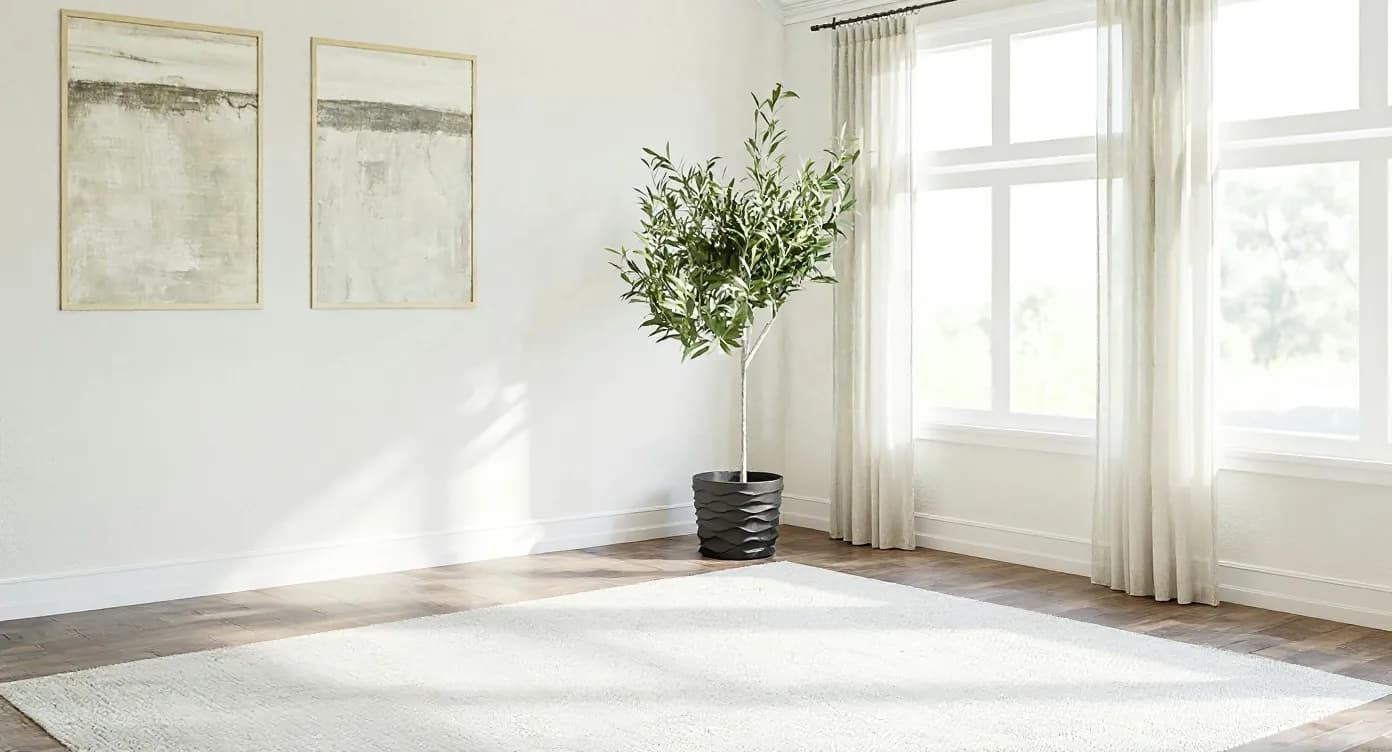
Remove objects from room photos, or empty the whole room

To remove an object from a room photo, brush over it with RivAI's Remove Objects tool and the AI erases it and fills in the floor, wall or furniture behind it. It works for clutter, cables, furniture and personal items, and each pass takes about 30 seconds. To clear a whole room at once, use Empty Space.

Download on theApp Store

Free to try · 3-day free trial on annual · Cancel anytime

4.88★ (16 ratings) on the App Store
Sample room cleared with the AI models behind RivAI, after
Sample room cleared with the AI models behind RivAI, before
BeforeAfterSample render

How to remove an object from a room photo

  1. 1Open your room photo in RivAI and choose Remove Objects.
  2. 2Brush over the object you want gone. A generous stroke works better than a tight one.
  3. 3Render and check the result in about 30 seconds.
  4. 4Repeat for other objects, or switch to Empty Space to clear all furniture at once.

What can you remove?

Clutter (cables, toys, laundry piles), furniture you plan to replace, personal items, dated decor and anything that distracts from the space. For whole-room clearing, the Empty Space tool removes all furniture in one pass to show the bare room.

Remove objects, then redesign

Removal is usually step one. Once the photo is clean, you can restyle the room in any of 43 styles, repaint a surface in an exact color, or put something new where the old object was with the Replace tool (brush the area, describe what you want). Declutter first, redesign second: that order tends to give cleaner results.

Why use a room-focused tool instead of a generic eraser?

Generic photo erasers are built for any kind of picture. In RivAI, removal sits next to the room tools you will use next: Empty Space, Replace, Paint, Floor and the full redesign. You can clear a corner, then restyle the whole room from the same photo without exporting between apps.


More ways to use RivAI: AI room design app, AI virtual staging preview, AI interior design and remove objects from photos on iPhone.

FAQ

Is removing objects from photos free?

RivAI is free to try, and a removal uses one free design; free results carry a watermark. Pro ($9.99 a week or $39.99 a year in the US) removes the watermark, and subscribers don't spend credits on removals.

Can I remove furniture from listing photos?

You can remove movable items such as furniture and clutter. If the edited photo goes into a real estate listing, label it as virtually altered, keep the original too, and never remove permanent features or defects. Check your local MLS rules.

Does it work on exterior photos?

Yes. You can remove vehicles, bins, hoses and clutter from facade and garden photos the same way.

What if the result has artifacts?

Brush a slightly larger area and render again; busy backgrounds sometimes need two passes. If one spot still looks wrong, use Replace on that area and describe what should be there.

Last updated 2026-10-09

4.88★ (16 ratings) on the App Store

See it on your own space

Snap it, pick a style, see it redesigned in about 30 seconds.

Download on theApp Store

Free to try · 3-day free trial on annual · Cancel anytime

RivAI: AI Home Design

4.88 (16 ratings) · Free to try

Get app