
Guide
How to redesign a room with AI, step by step
By RivAI Team at PixelPort LLC · Published · How we write guides
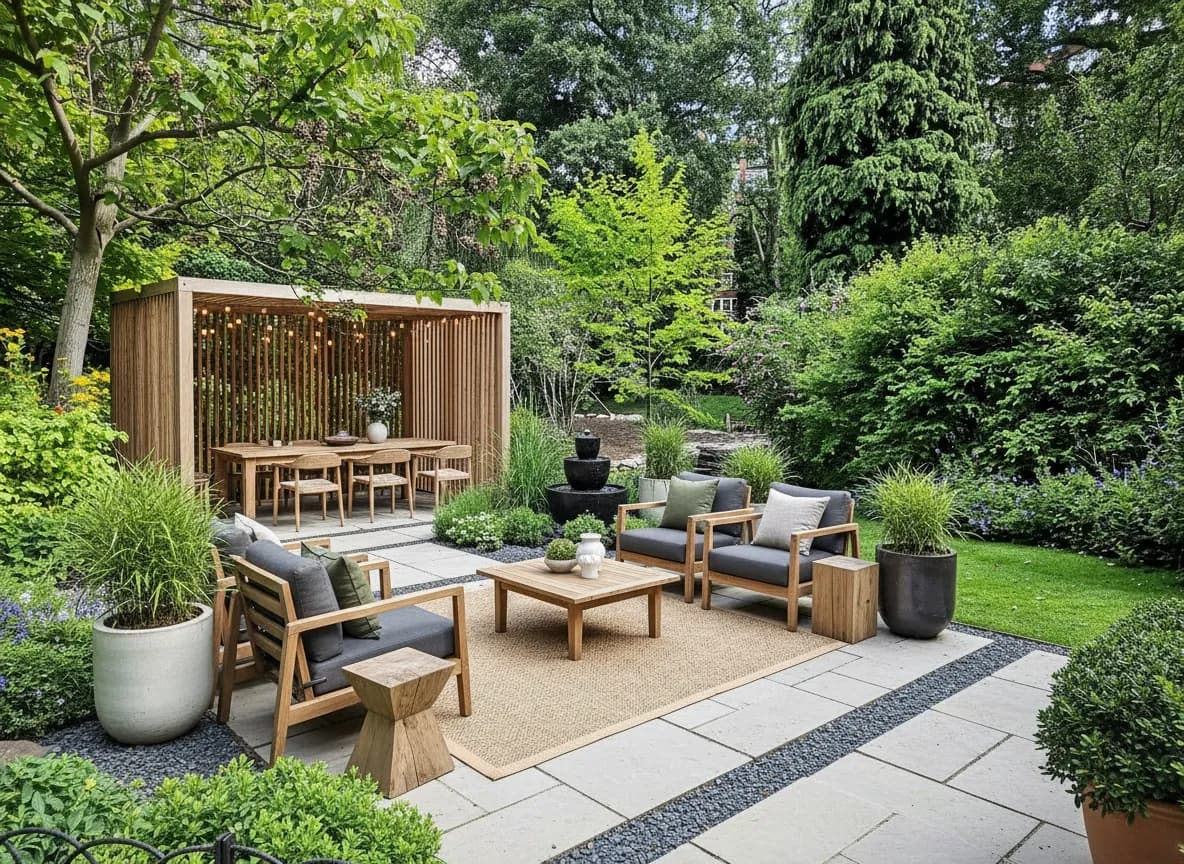
The short answerTo redesign a room with AI, snap a well-lit horizontal photo of the space, open it in an app like RivAI, pick one of 43 design styles, and get a photorealistic redesign in about 30 seconds. Refine the result with editing tools, then save and share your before-and-after.
What do you need before you start?
You need three things: an iPhone or iPad on iOS 17 or later, a clear photo of the room, and a few minutes. RivAI is free to try and needs no account, so you can test the workflow before deciding on Pro. No measurements, floor plans, or design experience are required; the AI reads the geometry of the room straight from your photo.
How to take a photo the AI can work with
- Shoot in good natural light. Open curtains and avoid backlighting from a bright window behind the furniture.
- Hold the phone steady and level; a tilted horizon confuses perspective.
- Use horizontal (landscape) orientation so the AI sees more of the room.
- Use the original, full-resolution photo rather than a screenshot or a chat-app copy; blurry or tiny photos produce blurry redesigns.
- Stand back and capture the full wall or corner you want to change instead of a close-up of one chair.
How do you redesign a room step by step?
- Open RivAI and tap Interior Redesign, or choose Exterior Redesign if you are working on a facade, patio, or garden.
- Take a new photo or upload one from your camera roll, following the lighting and orientation tips above.
- Browse the 43 styles and pick one; plan to render two or three to compare directions.
- Choose Keep Structure to preserve your layout and furniture placement, or Full Renovation to reimagine the room from scratch.
- Optionally pick one of the 6 color palettes, then render on Standard quality, or on High Quality if you have Pro.
- Wait about 30 seconds, then review the redesign with the before/after slider.
- Refine with the editing tools (paint, flooring, object removal), then save the image or share it directly.
How does AI redesign actually work?
The app analyzes your photo to understand the room's geometry: where walls, floors, windows, and furniture sit in perspective. It then regenerates the image guided by the style you picked, replacing surfaces, colors, and decor while keeping the perspective believable. Because it works from your real photo rather than a generic template, the output shows your actual window, your actual radiator, and your actual floor plan wearing a new design. That is why photo quality matters so much: the better the input, the more convincing the output.
What can you use an AI redesign for?
- Testing a style before committing to paint, furniture, or a renovation budget.
- Settling debates with a partner by rendering both preferences and comparing them side by side.
- Giving a contractor or designer a visual brief instead of a vague verbal description.
- Planning a room around a piece you already own, using Keep Structure to keep it in place.
- Previewing seasonal decor, such as a Christmas or autumn version of your living room, before buying anything.
- Exploring curb appeal ideas with Exterior Redesign before calling a landscaper or painter.
Should you pick Keep Structure or Full Renovation?
Keep Structure locks the room's architecture and furniture layout in place and only restyles surfaces, colors, and decor. Full Renovation lets the AI rethink the layout and swap all furniture. Choose Keep Structure when you plan to keep your sofa and layout; choose Full Renovation when you want ideas for a total makeover or an empty-room concept.
| Feature | Keep Structure | Full Renovation |
|---|---|---|
| Best for | Restyling your existing room | Total makeovers and empty rooms |
| Layout changes | None; furniture stays put | AI reimagines layout and furniture |
| Iteration speed | Fast; easy to compare styles | Slower to evaluate; more surprise |
| Planning realism | High; maps to what you own | Conceptual; use as inspiration |
Which quality tier should you use?
Standard quality takes about 30 seconds per render, which makes it ideal for comparing several styles in one sitting. High Quality is for Pro subscribers and takes up to about 2 minutes; once you know the direction, re-render the winner in High Quality before saving it or showing it to a partner or contractor.
How do you refine the redesign with edit tools?
A first render is a starting point, not a final answer. RivAI has 11 tools in total. Three are full redesigns (Interior, Exterior and Garden), and eight make targeted changes to a photo. You can also edit a finished result with Replace, Paint, Floor or Remove Objects:
- Paint: recolor one surface, such as walls, ceiling, cabinets, doors, trim or siding, with one of 12 curated swatches or any color from the iOS color picker, including a hex code.
- Floor: describe new flooring, such as oak, tile, or polished concrete.
- Walls and Curtains: describe a new wall finish or window treatment.
- Replace: brush over an item and describe what should go there.
- Remove Objects: brush over clutter, cables, or that exercise bike in the corner to erase it.
- Empty Space: remove all the furniture to see the room empty.
- Style Transfer: apply the look of a reference photo you love to your own room.
How many iterations does a good result take?
Expect three to five rounds. A typical loop is: generate two styles, pick the better one, repaint the walls with a hex code you are considering, remove one distracting object, then, on Pro, re-render in High Quality. Each Standard render takes about 30 seconds.
How do you save, compare, and share your redesign?
Every render keeps a before/after slider, so you can drag across the image and verify exactly what changed. Save favorites to your camera roll or share them to messages and social apps straight from the app. If you are stuck for ideas, open the Inspire gallery of preset ideas and use one as the starting point for your own photo.
What mistakes should you avoid?
- Do not upload dark or blurry photos; relight the room and reshoot instead.
- Do not judge a style from a single render; generate at least two takes before deciding.
- Do not skip Keep Structure when you already own furniture you plan to keep.
- Do not treat a render as a construction plan; confirm paint codes and dimensions before buying anything.
Can you redesign just one part of a room?
Yes, and partial edits are often the most useful mode. Instead of regenerating everything, brush over a single object with Replace and describe what you want instead: a leather sofa instead of fabric, a round table instead of rectangular. Remove Objects handles subtraction, and Paint, Floor, Walls and Curtains each target one surface. Partial edits keep the rest of a render you already like untouched, which makes iteration much faster than re-rolling the whole image.
How do you get consistently better results?
The difference between a mediocre render and a convincing one is usually process, not luck. Treat the app like a photographer treats a shoot: control the input, change one variable at a time, and keep notes on what worked.
- Reshoot rather than retry; if a render looks wrong, the photo is usually the reason.
- Change one variable per round: the style, the palette, or one edit, never all three at once.
- Save every decent render, because comparing versions side by side sharpens your taste fast.
- Steal intelligently: start from a preset idea in the Inspire gallery instead of guessing settings.
- Use Style Transfer with a reference photo when you want a specific mood the named styles do not capture.
- If you have Pro, finish with a High Quality render of the winning direction before you share it.
How much does AI redesign cost?
RivAI is free to try, so you can run your first redesigns before paying anything. Free results carry a small RivAI watermark and use the Standard tier. Pro costs $9.99 a week or $39.99 a year in the US, and the annual plan starts with a 3-day free trial. Subscribers do not spend credits, get the High Quality tier and lose the watermark. Compared with one wrong paint color or one returned sofa, that is cheap insurance.
Put this guide to work: AI room design app, AI interior design, interior design style quiz, ChatGPT for interior design and how much an interior designer costs.
Related
FAQ
Is AI room redesign free to try?
Yes. RivAI is free to try with no account, so you can test the workflow before subscribing. Pro is $9.99 a week or $39.99 a year in the US, with a 3-day free trial on the annual plan; it removes the free-design limit and the watermark and unlocks High Quality.
How long does an AI redesign take?
About 30 seconds per render on the Standard tier. High Quality, available with Pro, takes up to about 2 minutes and produces a sharper, more detailed result for sharing.
Can AI keep my existing furniture in the redesign?
Yes. Choose the Keep Structure option and the AI preserves your layout and furniture placement while restyling colors, materials, and decor. Use Full Renovation only when you want a completely new concept.
What kind of photo works best?
A horizontal, well-lit, full-resolution photo with the camera held level. Natural daylight and a wide view of the room give the AI the most geometry to work with.
Can I redesign exteriors as well as interiors?
Yes. The same workflow applies to the Exterior Redesign tool: photograph the facade, patio, or garden, pick a style, and generate. Good daylight matters even more outdoors.
Last updated 2026-10-09
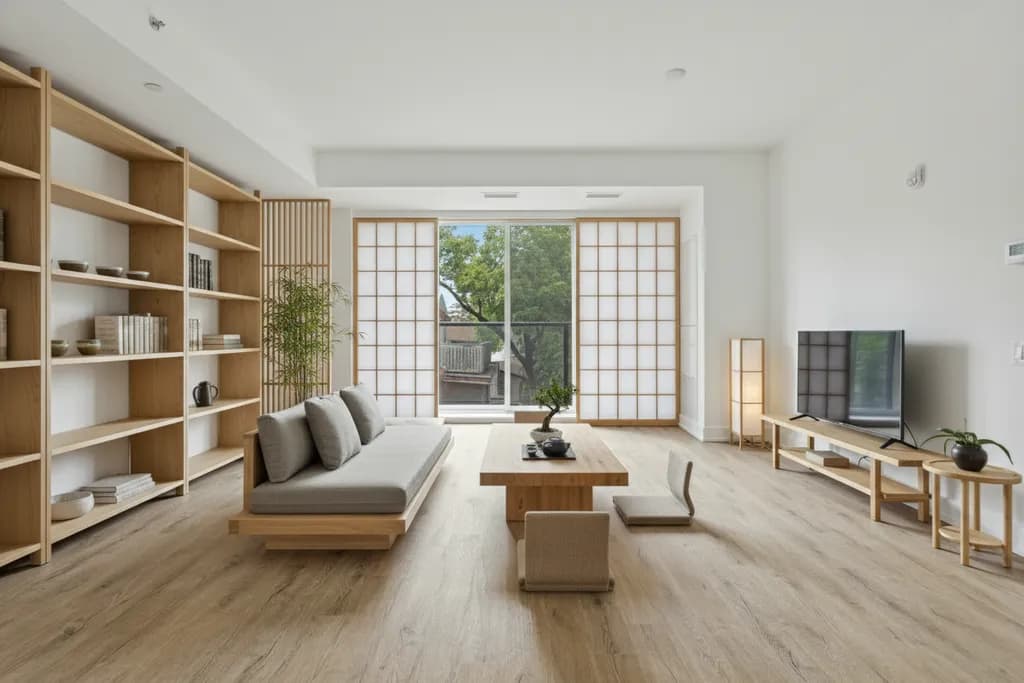
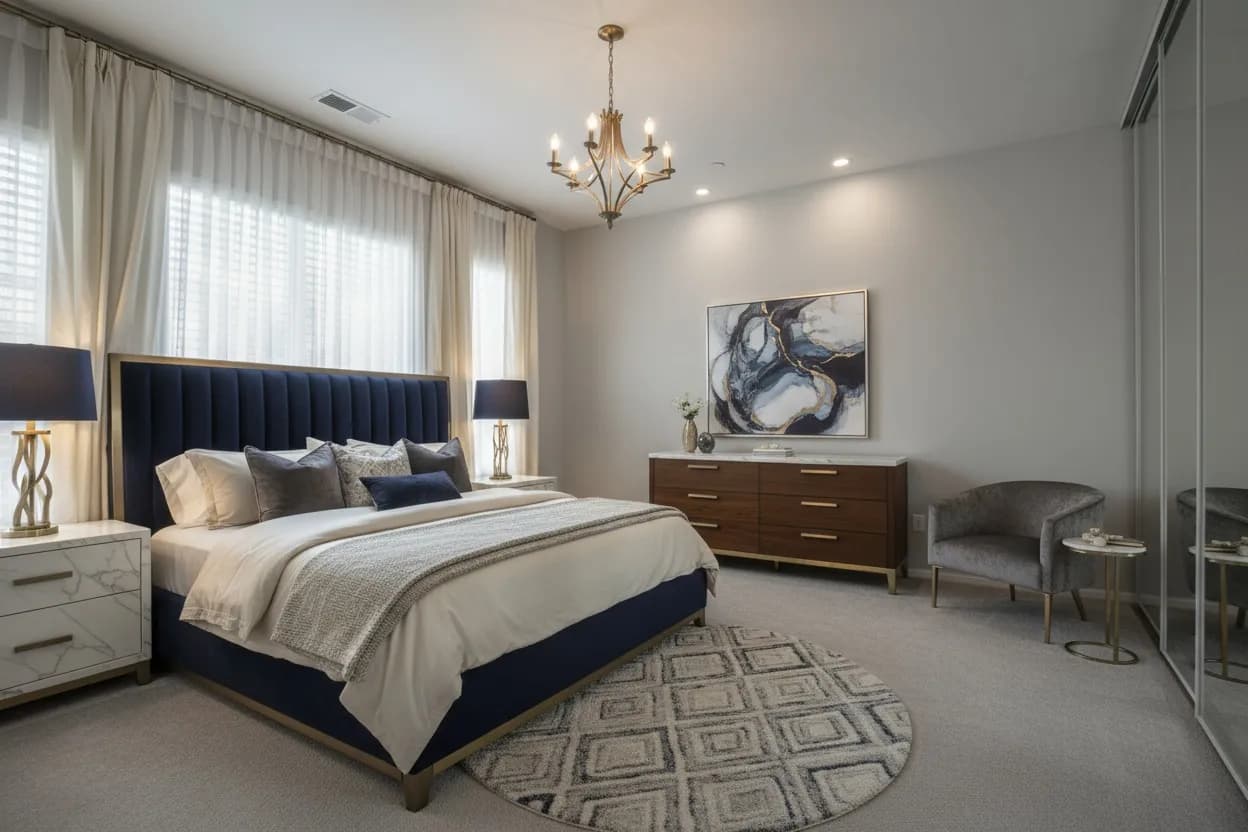
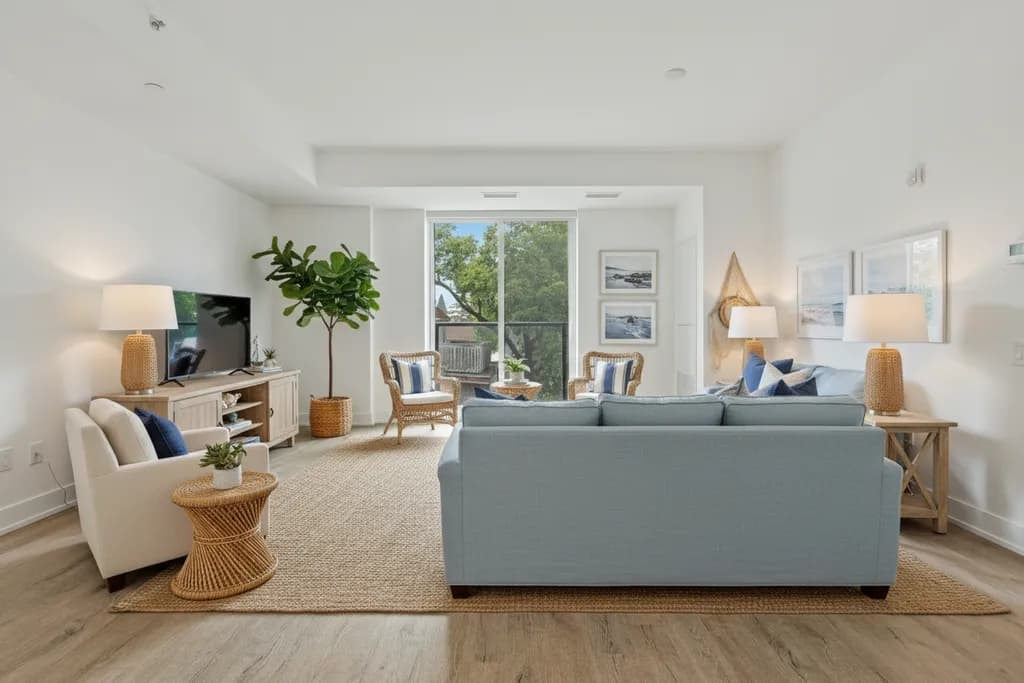
Try it on your own room
Snap it, pick a style, see it redesigned in about 30 seconds.
Free to try · 3-day free trial on annual · Cancel anytime
