
How to redesign your room with AI in 3 minutes (RivAI walkthrough)
By RivAI Team · · 5 min read
The short answer
To redesign a room with AI in about three minutes, take a level, daylight, landscape photo, open RivAI, pick a room type and one of 43 styles, choose Keep Structure or Full Renovation, and render in about 30 seconds. Then compare on the before/after slider, make one edit and save.
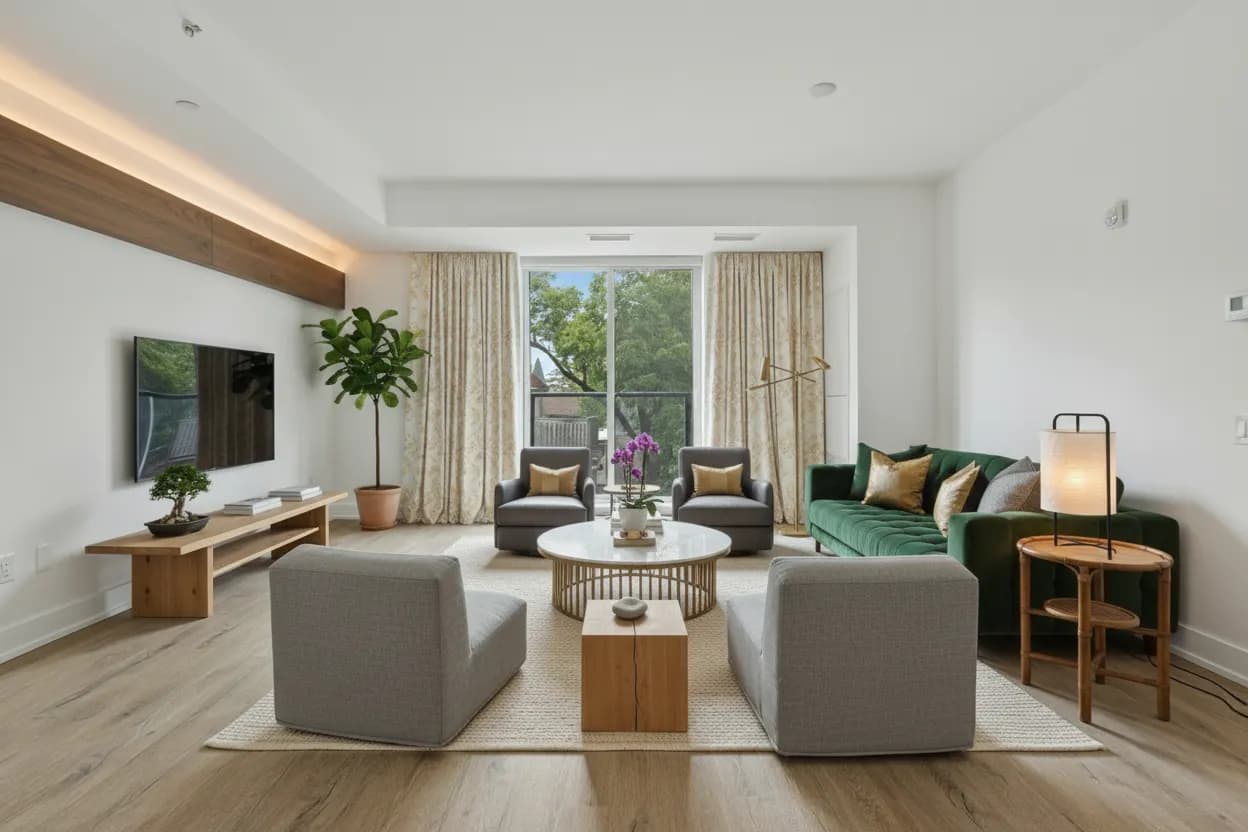
What does a 3-minute AI redesign look like?
RivAI turns one photo of your room into a photorealistic redesign. The whole loop fits in about three minutes: one minute to shoot, one minute to set up, roughly 30 seconds to render, and the rest to compare and make one edit. This is the short version. For the full reference, read our step-by-step guide to redesigning a room with AI.
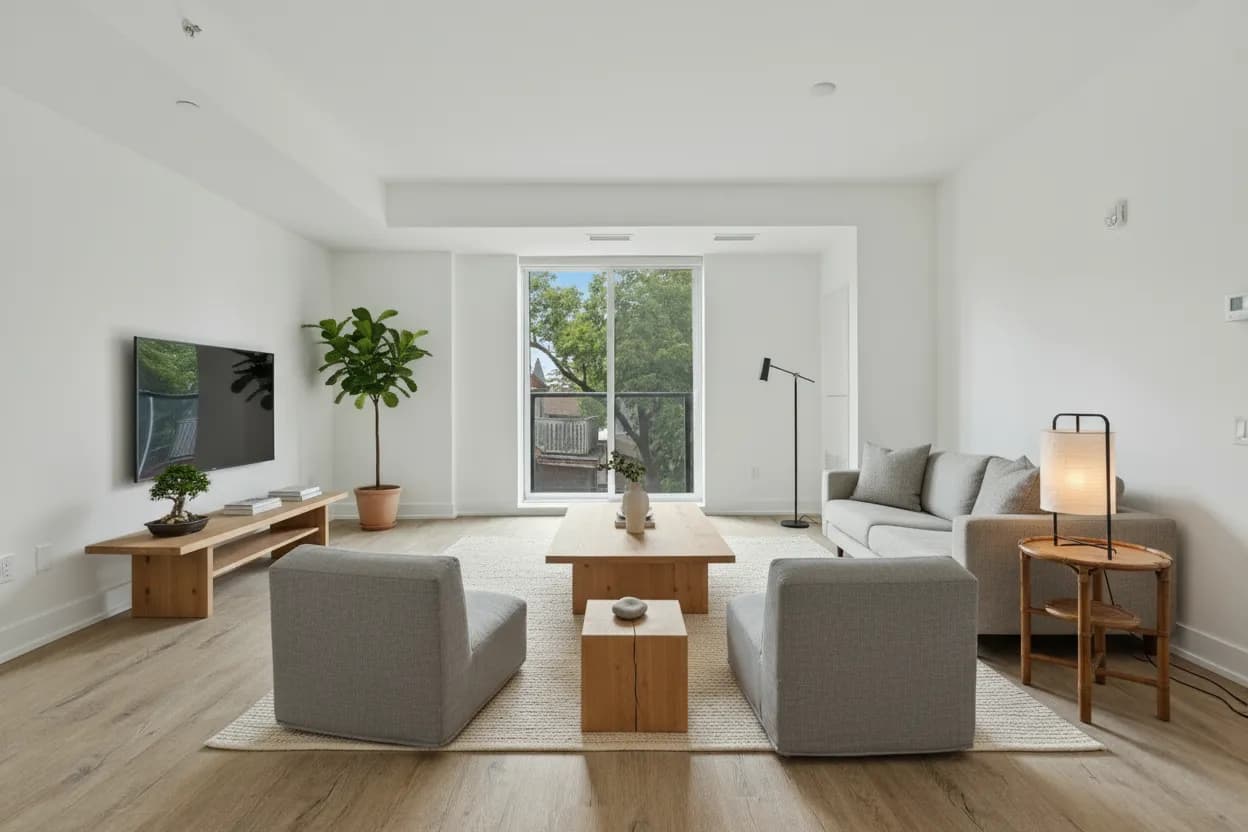
Minute 0 to 1: how do you take the right photo?
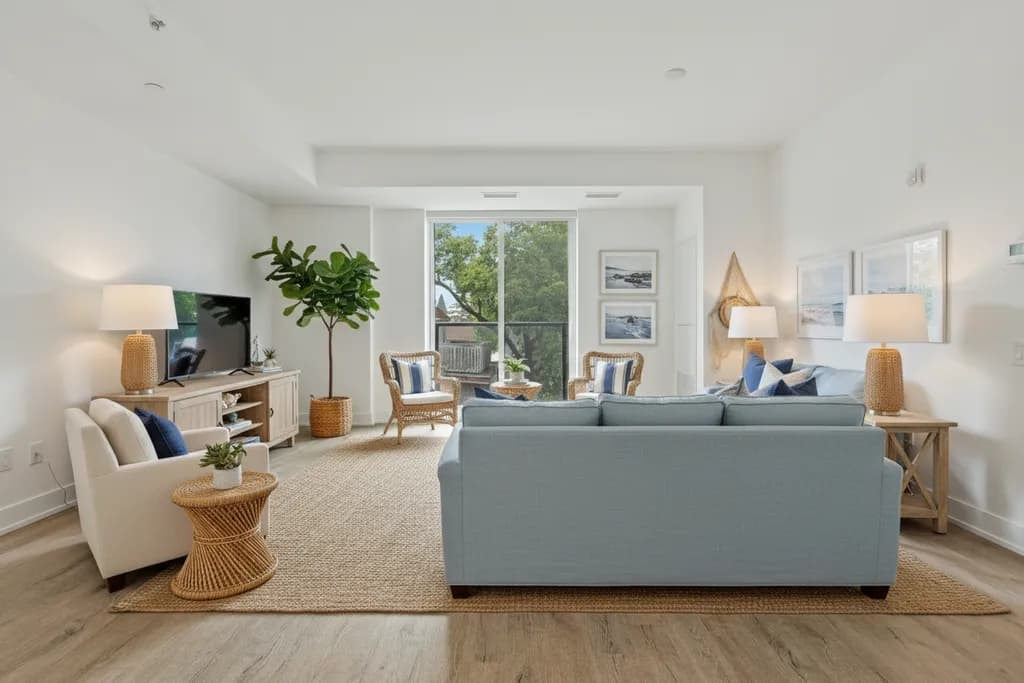
The photo sets the ceiling for the result, so spend your first minute here. The AI reads walls, floor, windows and furniture straight from the image, and a clean input makes a convincing output.
- Daylight: open the curtains and turn off mixed warm and cool lamps. Avoid shooting straight into a bright window.
- Landscape orientation: horizontal framing shows more of the room.
- Level and at chest height: hold the phone upright at roughly 4 ft (1.2 m) so vertical lines stay vertical.
- Whole wall or corner: step back far enough to capture a full wall or a corner with two walls, not a close-up of one chair.
Our room photography guide goes deeper on lighting and framing if your first render looks off.
Minute 1 to 2: which settings should you choose?
- Open RivAI, tap Interior Design and upload your photo or take a new one.
- Pick the room type, such as Living Room, Bedroom or Kitchen, so the AI furnishes it correctly.
- Choose one of 43 styles. If you are unsure, start with Modern, Scandinavian or Japanese, which read clearly in a first render.
- Select Keep Structure to preserve your layout and furniture placement, or Full Renovation to let the AI rethink the room.
- Optionally pick a color palette to steer the colors, then choose Standard quality and tap generate.
Keep Structure is the right default when you are keeping your sofa, bed or cabinets, because it changes finishes and decor without moving things around. Full Renovation is for empty rooms, total makeovers or pure inspiration. Not sure which style you are? The 60-second style quiz narrows it down.
What happens during the 30-second render?
A Standard render takes about 30 seconds. High Quality, available with Pro, takes up to about 2 minutes. Use Standard to test directions quickly and save High Quality for the version you plan to show a partner, contractor or client.
Draft fast in Standard, then spend High Quality only on the direction you already like.
Minute 2 to 3: how do you compare and refine the result?
Drag the before/after slider across the render to see exactly what changed. Then make one targeted edit rather than re-rolling the whole image. Pick the tool that fixes the biggest problem:
| If the render needs | Use | How it works |
|---|---|---|
| A specific wall color | Paint | Pick one of 12 curated swatches or enter a hex code in the iOS color picker |
| Different flooring | Floor | Swap carpet for wood, tile or concrete |
| Less clutter | Remove Objects | Erase clutter and unwanted items |
| A different piece of furniture | Replace | Mask the object and describe the replacement in a short prompt |
Paint is usually the best first edit, because a real hex code from a paint brand turns a nice picture into something you can actually buy. Try a warm white such as #F3EFE6 or a sage green such as #9CAF88 in the color picker. When the result looks right, save it to your camera roll or share it straight from the app.
Can RivAI clear a room instead of restyling it?
Yes. The Empty Space tool removes all the furniture from a photo, which is useful for seeing the bare room or starting a fresh redesign from a blank room. It is not virtual staging; it does the opposite. See the virtual staging page for what the app can and can't do there.
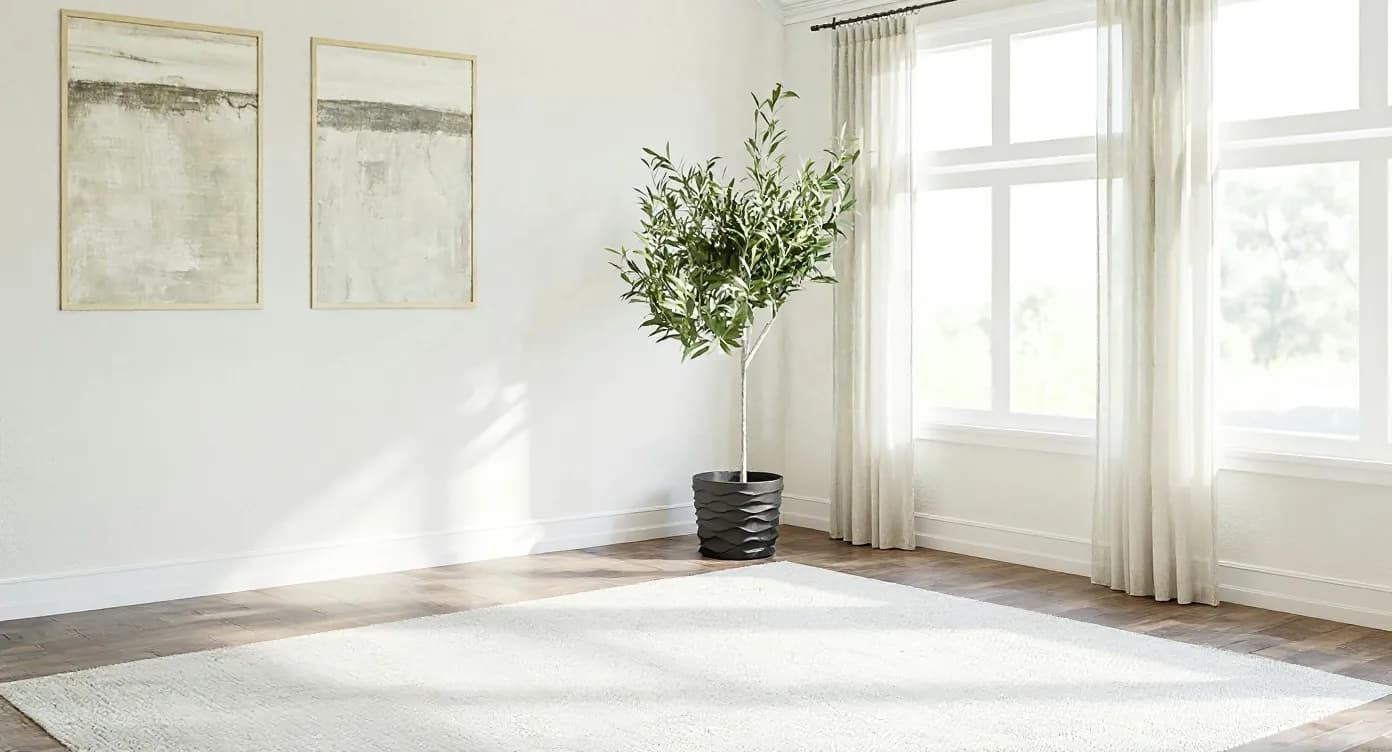

What if you do not know where to start?
Open the Inspire gallery of preset ideas and start from a look you like, so you skip the guesswork. The app is available in six languages: English, German, Spanish, French, Italian and Russian. You can also read more about the AI interior design tool on our site.
How much does it cost?
RivAI is free to try. Pro is $9.99 a week or $39.99 a year (US prices at time of writing), and the annual plan starts with a 3-day free trial. Pro removes the free-design limit, unlocks High Quality and removes the watermark; subscribers don't spend credits.
FAQ
How long does a RivAI redesign take?
A Standard render takes about 30 seconds. High Quality, included with Pro, takes up to about 2 minutes and is the tier to use for final versions.
What photo works best for AI room redesign?
A level, landscape photo taken in daylight at chest height, showing a full wall or corner. Avoid shooting into a bright window.
Should I use Keep Structure or Full Renovation?
Use Keep Structure when you are keeping your furniture and layout, since it only changes finishes and decor. Use Full Renovation for empty rooms or when you want the AI to rethink the whole space.
Can I change just the wall color after a redesign?
Yes. The Paint tool recolors walls with one of 12 curated swatches or any color from the iOS color picker, which accepts a hex code. It also works on ceilings, cabinets, doors, trim and siding.
Is RivAI free?
RivAI is free to try. Pro is $9.99 a week or $39.99 a year (US prices at time of writing), and the annual plan starts with a 3-day free trial. Pro unlocks High Quality and removes the watermark.

RivAI Team
We build RivAI, the AI home design app for iPhone, at PixelPort LLC. RivAI is our product, so read our picks with that in mind: we take no payment for placements, and every product claim is checked against the app. About us · Editorial policy.
Published · Last updated
- #rivai
- #ai redesign
- #tutorial
- #iphone
Keep reading
 App news
The best interior design apps for iPhone in 2026, by job
No single app does everything. Here's which iPhone interior design app fits each job, from 3D planning and LiDAR scans to paint previews and AI photo redesign, with each one's limits.
· 11 min read
 App news
Free AI interior design apps: what you actually get for free
Most free AI interior design tools give you a daily allowance, a small batch of trial renders or a quick taste before a subscription. Here's what each one gives free, and the catches.
· 11 min read
 How-to
How to remove objects from photos on iPhone (with or without Clean Up)
Clean Up in the iPhone Photos app erases distracting objects with a tap or a brush stroke, if your phone supports Apple Intelligence. Here's how to use it, why it might be missing, and what to do instead.
· 10 min read
Try this on your own room
Snap it, pick a style, see it redesigned in about 30 seconds.
Free to try · 3-day free trial on annual · Cancel anytime
